
Table of Contents
- Why Genuine Apple Refurbished Parts Matter
- How to Check iPhone Model Number and Serial Number
- Using iPhone Parts and Service History in Settings
- Visual Inspection of Display, Housing, and Internals
- Apple Genuine Parts vs Third Party: Key Differences
- Checking Battery Health, Calibration, and Diagnostics
- How Genuine Parts Affect Resale Value and Warranty
- Final Checklist Before You Buy or Accept a Device
- Frequently Asked Questions
Last Updated: September 7, 2026
Why Genuine Apple Refurbished Parts Matter
A refurbished iPhone is only as trustworthy as the components inside it. When you buy a device marketed with genuine apple refurbished parts, you expect original displays, batteries, and cameras that meet Apple's performance standards. The reality of the secondary market is messier: many sellers swap in aftermarket components to cut costs, and those parts often degrade faster or trigger software warnings.
Identifying genuine apple refurbished parts protects your investment and your data. OEM components are engineered for specific thermal, power, and calibration profiles. Third-party replacements rarely match those tolerances, leading to overheating, poor battery life, or color-shifting displays.
Apple built verification tools directly into iOS, and a few physical checks reveal most non-genuine work. This guide walks through the settings menus, serial number logic, and visual cues that separate authentic refurbishment from a cosmetic cover-up.
How to Check iPhone Model Number and Serial Number
The fastest way to verify a device's origin starts in Settings > General > About. The model number shown here tells you whether the phone was built as a new retail unit, a carrier-specific model, or a refurbished unit sold directly by Apple.
Understanding Model Number Prefixes
The model number prefix is your first authenticity signal. A retail iPhone model number begins with "M" (like MQ0E3LL/A). A "F" prefix indicates Apple certified refurbished hardware. A "N" prefix means the unit was a replacement device issued through Apple's warranty program.
Write down the full string, then cross-reference the serial number against Apple's coverage check page. A genuine apple refurbished unit will show an active warranty start date and matching purchase history. If the serial number returns no results or shows a mismatched model, the device may have been reassembled from multiple donor units.
Using iPhone Parts and Service History in Settings
Apple's iOS 15.2 and later versions include a dedicated Parts and Service History section under Settings > General > About (apple.com). This menu is the single most reliable tool for identifying genuine components on modern iPhones.
iPhone parts and service history displays a list of serviced components and labels each as "Genuine Apple Part" or "Unknown Part." For iPhone 12 and newer models, you'll see entries for battery, display, and camera. The history also records the date of the most recent service, helping you verify the seller's claims about a recent battery replacement.
Here's what to check in the menu:
- Open Settings and navigate to General, then About
- Tap "Parts and Service History" near the bottom
- Look for the "Genuine Apple Part" label next to each component
- Note any "Unknown Part" notifications, which indicate non-genuine hardware
- Cross-check the service date against the device's purchase timeline
An unknown part notification appears when iOS cannot authenticate a component's serial number against Apple's database. This happens with aftermarket displays, third-party batteries, or any part transplanted from another phone without proper pairing.
Visual Inspection of Display, Housing, and Internals
Software checks are powerful, but physical inspection catches what iOS cannot. A genuine apple refurbished device should look and feel like a factory unit, with uniform seams and consistent color matching across the housing. This section goes beyond the cosmetic checklist most guides stop at, diving into the board-level and micro-soldering tells that separate a professional refurbishment from a quick parts swap.
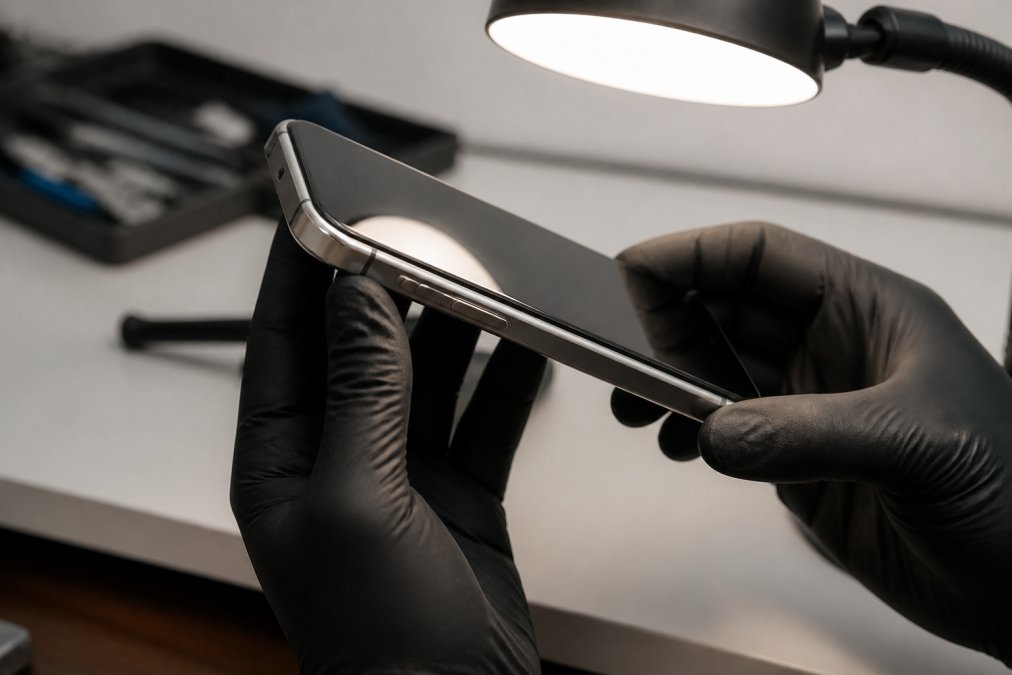
Display and Housing Tells
Start with the display. Hold the phone at an angle under bright light and look for a slightly thicker bezel or a display that sits proud of the frame. Aftermarket screens often lack the same oleophobic coating, so fingerprints smear more readily. The True Tone feature is another tell: if the screen does not adapt to ambient lighting, the display is likely not genuine. On iPhone 12 and newer, check the display's edge-to-edge uniformity, genuine OLED panels show consistent black levels; third-party panels often exhibit a slight gray haze or color shift at low brightness.
Check the housing edges and the SIM tray. The tray should be flush with the frame, and its color should match the phone's finish. A mismatched tray is a common sign of a housing replacement. Look at the screw heads near the charging port: stripped or mismatched screws indicate that someone opened the device with improper tools. Genuine Apple pentalobe screws have a distinct five-point star pattern; aftermarket replacements often use a standard Phillips head or show burring from a worn driver.
Spotting Micro-Soldering and Board-Level Repairs
Board-level work is harder to spot, but a few clues reveal it. Remove the SIM tray and shine a light into the slot. Genuine devices show clean, uniform internal shielding. Water damage indicators inside the SIM slot should be white or silver; red or pink coloring indicates liquid exposure, which often leads to board-level repairs.
Micro-soldering repairs involve reflowing chips on the logic board to fix power or signal issues. These repairs are not inherently bad, but they void Apple's warranty and often fail again within months. Here is what to look for when you suspect board-level tampering:
- Check the SIM slot interior for flux residue. Reflowed boards often leave a faint, honey-colored or dark residue around the SIM reader's solder points. Genuine boards are clean and matte.
- Inspect the charging port for rework marks. A board that has been micro-soldered near the charging flex connector may show discoloration or a slightly melted appearance on the internal plastic guide.
- Look for inconsistent shield can alignment. The metal EMI shields over the logic board's chips should sit perfectly flush. If you see a shield that is slightly lifted, dented, or has tool marks, someone has been under it.
- Test for intermittent behavior under load. Run a graphics-intensive app for ten minutes. A board with a poor reflow joint will often crash, restart, or show graphical artifacts when the chip heats up and the solder expands.
The Calibration Angle Most Buyers Miss
A critical distinction separates a non-genuine part from a genuine part that has not been calibrated. Apple's repair ecosystem requires that even genuine components undergo a post-installation calibration process using proprietary tools (the same ones used in Apple Stores and Apple Authorized Service Providers). This process pairs the part's unique serial number to the logic board and writes calibration data for things like the display's color profile, the battery's cycle counter, and the Face ID depth-mapping array.
If you buy a device that shows "Genuine Apple Part" in Settings, that is a strong signal. But if the seller claims a genuine part was installed and the device shows no Parts and Service History entry at all, the part may have been installed without calibration. This happens when an unauthorized shop obtains a genuine pull from another device but lacks the proprietary calibration hardware. The result is a component that is physically genuine but functionally unpaired, Face ID may fail, True Tone may be missing, or battery health reporting may be inaccurate.
To check for this, ask the seller for the repair invoice and look for a reference number that matches Apple's GSX (Global Service Exchange) system. Authorized repairs generate a work order number that you can verify with Apple support. A genuine part without a GSX record is either stolen, pulled from a donor device, or installed outside Apple's ecosystem, all of which should lower your offer price.
Practical Inspection Sequence
When you have the device in hand, run this sequence in under three minutes:
- Ambient light test: Tilt the display under a desk lamp. Genuine glass reflects a clean, single image; aftermarket glass often shows a slight double-reflection or rainbow tint.
- Seam check: Run a fingernail along the display-frame junction. A genuine seal is nearly invisible; a replaced display often has a hairline gap or a slightly raised edge.
- SIM tray pull: Remove the tray and shine a light inside. Look for the water damage indicator (white/silver is good) and any residue or tool marks on the internal frame.
- Screw inspection: Use a loupe or macro lens on your phone camera to examine the two screws flanking the charging port. Genuine pentalobe screws have crisp edges; any rounding or mismatch means the device was opened.
- Thermal test: Run a 4K video recording for five minutes. A board with poor thermal management (common after micro-soldering) will throttle the screen brightness or stop recording due to heat.
A device that passes all five physical checks and shows clean Parts and Service History is almost certainly built with genuine apple refurbished parts. If any check fails, walk away or negotiate based on the documented issue.
Apple Genuine Parts vs Third Party: Key Differences
The distinction between Apple genuine parts vs third party comes down to authentication, calibration, and longevity. Genuine components carry unique serial numbers that iOS verifies during pairing. Third-party parts lack this authentication, triggering the unknown part notification and disabling features like True Tone or battery health reporting.
Apple genuine parts also require calibration after installation. A display replacement needs a calibration process that aligns color profiles and touch sensitivity. Third-party screens often skip this step, resulting in a display that responds inconsistently or drains battery faster. Biometric sensor functionality depends on this pairing too: Face ID and Touch ID are tied to the original components, so any display or camera swap without proper pairing disables them.
The risks of non-genuine replacement parts extend beyond notifications. Aftermarket batteries frequently lack the same thermal management, and they can swell or fail unpredictably. Third-party displays may not support the full brightness range or ProMotion refresh rates on newer models. Water resistance integrity is also compromised: Apple seals displays with specific adhesives, and generic parts rarely maintain the same IP68 rating.
Checking Battery Health, Calibration, and Diagnostics
Battery health is the most common concern for refurbished buyers, and iOS provides clear data. Navigate to Settings > Battery > Battery Health & Charging to view the maximum capacity percentage. A genuine apple refurbished unit should show 85% capacity or higher, though reputable sellers often replace batteries to reach 100%. But the percentage is only half the story, the deeper diagnostic signals live in how iOS reports the data and what the Parts and Service History reveals about calibration.
What Battery Health Data Actually Tells You
The maximum capacity percentage is a calculated estimate, not a precise measurement. iOS derives it from the battery's chemical age, which is tracked through a combination of charge cycles, temperature exposure, and discharge patterns. A battery that shows 100% capacity on a device that is two years old is either brand new or has been reset by a third-party tool, both scenarios require scrutiny.
Here is what to check beyond the percentage:
- Peak Performance Capability: If this line reads "This iPhone has experienced an unexpected shutdown," the battery or its management system has a problem. A genuine apple refurbished unit should show "Your battery is currently supporting normal peak performance."
- Cycle Count (iPhone 15 and later): Navigate to Settings > General > About and scroll to the battery section. Apple added cycle count and manufacture date data here for iPhone 15 and newer. A refurbished unit with a new battery should show a cycle count under 20. If the cycle count is high but the capacity reads 100%, the battery data has likely been manipulated.
- Service Warning: If iOS says "Service recommended," the battery health has degraded below 80% or the system cannot verify the battery's identity. Either way, the battery is not in acceptable refurbished condition.
The Calibration Problem Nobody Talks About
Battery health reporting itself is a diagnostic signal. When a third-party battery is installed without proper calibration, iOS often displays "Unable to verify this iPhone has a genuine Apple battery" or omits the health percentage entirely. If the health section shows no data, the battery is not original.
But there is a subtler failure mode: a genuine Apple battery that was pulled from a donor device and installed without running Apple's calibration process. In this case, the battery is physically genuine, but the logic board has not been updated with the battery's unique serial number and chemical age data. iOS may show a capacity percentage, but it will be inaccurate, often reading higher than the battery's true state. This is why a device that shows "Genuine Apple Part" in Parts and Service History can still have a battery that dies unexpectedly at 20%.
To verify calibration, check the Parts and Service History entry for the battery. A properly calibrated replacement will show a service date and a "Genuine Apple Part" label. If the battery entry is missing entirely but the display and camera show genuine parts, the battery was likely replaced by an unauthorized shop that could not complete the calibration step.
Running Diagnostics Beyond the Settings Menu
Settings-based checks have limits. iOS only reports what the logic board can authenticate, and a sophisticated third-party tool can spoof some of that data. For a deeper check, use Apple's own diagnostic tools:
- Apple Support App: Download the Apple Support app and run the "Diagnostics" tool under the device's support page. This runs a remote test that checks battery, cellular, and display hardware. It requires an active internet connection and takes about five minutes. The tool will report failures that the Settings menu hides.
- Apple's Coverage Check Page: Enter the serial number at checkcoverage.apple.com. This confirms the device's model, purchase date, and warranty status. A refurbished unit sold by Apple will show a "Repaired" or "Refurbished" note in the purchase history. A device with no purchase date or a mismatched model indicates a reassembled unit.
- GSX Verification (for advanced buyers): Apple's Global Service Exchange is the internal system used by authorized service providers. You cannot access it directly, but you can ask a seller to provide a GSX report. This report shows every service event tied to the serial number, including part replacements and calibration records. Most sellers will not have this, but if they do, it is the strongest evidence of genuine apple refurbished parts.
iOS Version Differences You Need to Know
The Parts and Service History feature is not uniform across all iOS versions. Here is what to expect based on the device's software:
- iOS 15.2 through 15.7: Parts and Service History is available for iPhone 12 and iPhone 13 models. It shows battery, display, and camera entries.
- iOS 16 and 17: The feature expands to include iPhone 14 models and adds more granular labels, including "Genuine Apple Part" versus "Unknown Part."
- iOS 17.2 and later: Apple added a "Service History" section for iPhone 15 models that includes battery cycle count, manufacture date, and first-use date. This is the most detailed data available to consumers.
If a device is running an older iOS version, the Parts and Service History menu may not appear at all. In that case, rely on the physical inspection and battery health checks described above. A device that is several years old and has never been updated to iOS 15.2 or later should raise a red flag, the seller may be hiding the service history by keeping the software outdated.
The Bottom Line on Diagnostics
A genuine apple refurbished unit should show clean battery health data, a Parts and Service History with genuine part labels, and no warnings in Apple's remote diagnostics. If any of these signals are missing or inconsistent, the device has been serviced outside Apple's ecosystem. That does not automatically mean the parts are fake, but it does mean the calibration data is unreliable, and the device's long-term performance is a gamble. For a refurbished purchase, that gamble is not worth the discount.
How Genuine Parts Affect Resale Value and Warranty
Component authenticity directly shapes resale value. A device with a documented genuine apple refurbished history commands a premium because buyers know the internals meet factory specifications. Devices with unknown part notifications sell at a significant discount, and many trade-in programs reject them outright.
Warranty status follows the same logic. Apple's limited warranty covers manufacturing defects, but it explicitly excludes damage from unauthorized modifications or aftermarket parts. If a third-party display fails, Apple will not service it under warranty, and a repair typically costs more than the savings from buying a discounted device. The Apple support documentation on unauthorized modifications confirms that service is refused when non-genuine parts are detected.
Calibration requirements also affect long-term reliability. Genuine parts are calibrated at installation, ensuring consistent performance over time. Aftermarket components drift from spec as they age, which explains why refurbished devices with third-party parts often develop touch issues or camera focus problems within months. For a device meant to last two years of college or daily commuting, that reliability gap matters more than the upfront price difference.
Final Checklist Before You Buy or Accept a Device
Before you commit to a purchase, run through this verification sequence. It takes five minutes and catches most misrepresented devices.
- Check the model number prefix in Settings > General > About (M for retail, F for Apple refurbished, N for replacement)
- Verify the serial number on Apple's coverage check page and confirm the model matches
- Open Parts and Service History and confirm every component reads "Genuine Apple Part"
- Review battery health percentage and confirm the health data is present
- Test True Tone and Face ID to confirm display and camera pairing
- Inspect the housing seams, SIM tray color, and screw condition under bright light
- Confirm the warranty status and ask the seller for the repair history in writing
A device that passes all seven checks is almost certainly built with genuine apple refurbished parts. If any check fails, walk away or negotiate based on the documented issue. The FTC guidance on refurbished product claims reminds buyers that sellers must accurately represent the condition and origin of used electronics, so a mismatched serial or unknown part notification is grounds for a return.
Buying refurbished is a smart financial move when you verify the hardware. The tools are built into iOS, the physical checks take minutes, and the payoff is a device that performs like new without the retail price. Buying refurbished is a smart financial move when you verify the hardware. The tools are built into iOS, the physical checks take minutes, and the payoff is a device that performs like new without the retail price. Genuine components are what keep a device reliable for years, not months.
Frequently Asked Questions
How can I check if my iPhone parts are original?
Open Settings, then General, then About. Tap Parts and Service History. Genuine Apple parts show 'Genuine Apple Part' next to the component. If you see 'Unknown Part' or a notification that a part cannot be verified, the component is likely third-party or was installed improperly. For displays and batteries, this section appears on iPhone XR and newer models. For cameras, it applies to iPhone 12 and later.
How can I verify if my Apple product is refurbished?
Check the model number in Settings, General, About. Genuine Apple refurbished devices have a model number starting with 'F'. A model number starting with 'M' means brand new, 'N' means replacement, and 'P' means personalized. Also review the iPhone parts and service history section to confirm all components are genuine Apple parts rather than third-party replacements.
Does Apple provide a service history for replaced parts?
Yes. Apple stores parts and service history directly on the device. In Settings, General, About, tap Parts and Service History. This shows whether replaced parts are genuine Apple components, used genuine parts, or unknown third-party parts. The history records display, battery, and camera replacements. This data helps you verify a refurbished device's repair history before you buy.
What should I check before buying a refurbished iPhone?
First, confirm the model number starts with 'F' to verify Apple's refurbishment process. Then open Settings, General, About and review Parts and Service History for any 'Unknown Part' warnings. Check battery health in Settings, Battery, Battery Health and look for maximum capacity above 85%. Finally, inspect the display for color uniformity and verify Face ID works, since these are common failure points with third-party repairs.
The difference between a great refurbished deal and a costly mistake comes down to component authenticity. Now you know exactly where to look and what each setting means. When you're ready to shop, explore our curated selection of refurbished Apple devices, each inspected against the standards covered in this guide. Continue shopping with Smartcare Marketplace and find a device that elevates your everyday tech without compromise.