
Table of Contents
- Why Apple Display Authenticity Matters for Refurbished Buyers
- Step-by-Step: How to Verify Apple Display Authenticity in Settings
- How to Identify Genuine Apple Refurbished Parts
- Physical Inspection Techniques for Display Authenticity
- The Risks of Aftermarket iPhone Screens
- How iPhone Parts and Service History Affects Resale Value
- Conclusion: Verify Before You Buy
- Frequently Asked Questions
Last Updated: September 20, 2026
Why Apple Display Authenticity Matters for Refurbished Buyers
The screen is the most commonly replaced part on a used iPhone, and it is also the easiest place for a seller to cut corners. That is why knowing how to verify apple display authenticity has become a core skill for anyone shopping refurbished. A genuine Apple display is matched to your device at the factory. A cheap aftermarket panel may look fine on day one and cause problems later. Smartcare Marketplace inspects every device we sell, but you should still know how to check for yourself.
Apple's own documentation explains that the device can now tell you when a part is not genuine. The Apple support guide on parts and service history walks through where to find this information in Settings.
Here is the good news: you do not need special tools to run a basic check. You just need your phone and a few minutes.
Step-by-Step: How to Verify Apple Display Authenticity in Settings
You can verify apple display authenticity in about two minutes using the built-in Settings app. Apple added this tool so buyers could see a device's repair record without visiting a store.
Follow these steps:
- Open Settings on your iPhone.
- Tap General.
- Tap About.
- Scroll down to Parts and Service History.
- Look at the entry for Display.
If the display is a genuine Apple part, you will see "Genuine Apple Part" next to it. If it is not, you will see a warning instead.
Checking Parts and Service History on iOS 15.2 and Later
The Parts and Service History menu only appears on iOS 15.2 or later. If you do not see it, update your software first. Apple notes that this feature was introduced to give owners more transparency about repairs.
Older iPhones may not show a display entry at all. That does not always mean the screen is fake. It can simply mean the device predates the feature.
What the 'Unknown Part' Warning Means
An "Unknown Part" message means the display was replaced, but the phone cannot confirm it is genuine. This can happen for a few reasons:
- The screen is a third-party or aftermarket panel.
- The screen is a genuine Apple part, but it was not calibrated to this specific device.
- The part was moved from another iPhone.
An Unknown Part warning does not always mean the screen is low quality. But it does mean you should look closer before you buy.
How to Identify Genuine Apple Refurbished Parts
Knowing how to identify genuine apple refurbished parts starts with one rule: Apple parts are serialized. Each genuine display carries a serial number that is paired to one device during repair.
Here is what to check:
Apple iPad 5 – 9.7" Display, 32GB →
- Parts and Service History should read "Genuine Apple Part."
- The serial number in Settings should match the one on the device's original packaging, if you have it.
- The repair should have been done by an authorized service provider.
If a seller cannot show you the Parts and Service History screen, that is a red flag. Ask for a screenshot before you pay.
Physical Inspection Techniques for Display Authenticity
Software checks are useful, but a hands-on look catches things Settings cannot. This is the step most buyers skip, and it is where the real problems hide. Use these techniques when you can inspect the device in person or on a video call with the seller.
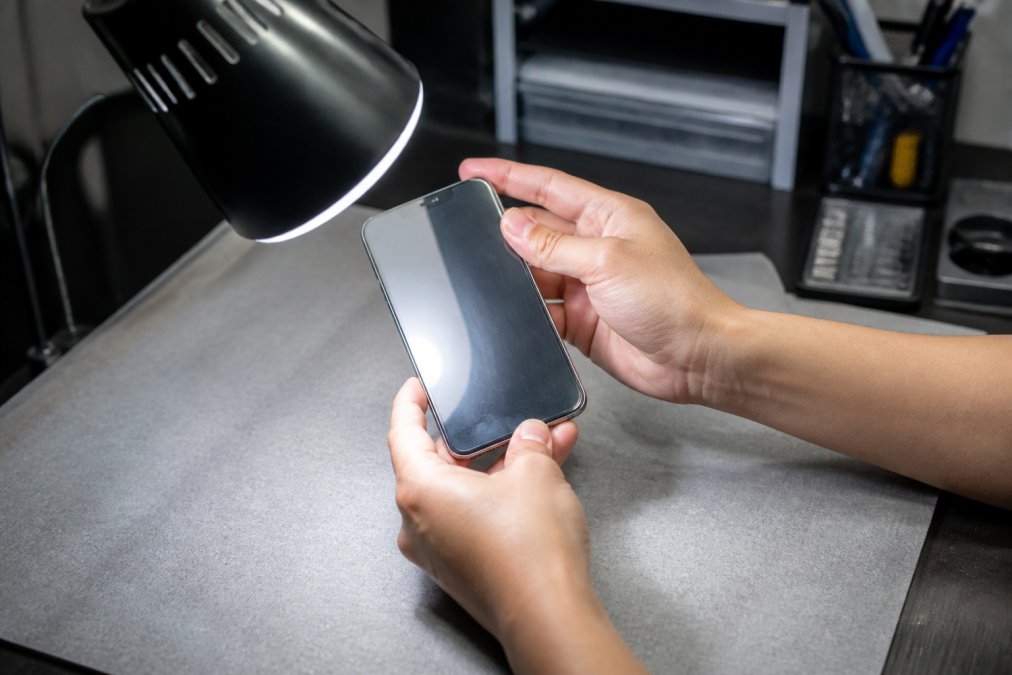
Visual Cues: Glass, Reflections, and Edges
- Tilt the screen under a bright light. Genuine glass reflects evenly, with a smooth, continuous reflection. Aftermarket panels often show a wavy, cloudy, or distorted reflection because the glass and the display layer are not perfectly bonded.
- Look at the edges. A genuine display sits flush with the frame. Gaps, glue lines, or a slight lip suggest a rushed repair or a panel that does not match the original dimensions.
- Check the black level. On a genuine OLED display, blacks are deep and uniform. On many aftermarket panels, blacks look slightly gray or uneven, especially at the edges.
- Inspect the notch or Dynamic Island area. The cutout should be clean and symmetrical. Aftermarket panels sometimes have slightly misaligned cutouts or visible adhesive around the sensor area.
Tactile Cues: Touch, Pressure, and Haptics
- Test touch sensitivity across the entire screen. Open a drawing app or a notes app and drag your finger in a continuous line from corner to corner. Dead zones, skipped segments, or laggy response are red flags.
- Check for pressure sensitivity. On models that support it, a genuine display responds smoothly to varying pressure. Aftermarket panels often feel binary: either no response or full response.
- Test the edges. Swipe from the very edge of the screen inward. Genuine displays register edge swipes reliably. Aftermarket panels sometimes have dead margins near the bezels.
- Check haptics. On models with a Taptic Engine, the haptic feedback should feel crisp and consistent. A poorly installed display can interfere with the haptic engine or its connection.
Sensor and Feature Checks
- True Tone. If the setting is missing or grayed out, the ambient light sensor may not be paired correctly. On a genuine display, True Tone should be available and should shift the color temperature smoothly when you move between different lighting conditions.
- Auto-brightness. It should adjust smoothly when you cover the top of the screen. If it does not respond, the ambient light sensor may be disconnected or the display may not be paired.
- Face ID. On models with Face ID, the display replacement should not affect Face ID if the original sensor array was transferred. If Face ID does not work, the repair may have damaged or replaced the sensor array, which is a separate and more serious issue.
- ProMotion (on Pro models). If the device supports ProMotion, scroll through a long list or a web page. The display should refresh at up to 120Hz, which looks noticeably smoother than 60Hz. Aftermarket panels often do not support ProMotion, or they support it inconsistently.
Model-Specific Notes
- iPhone XR, XS, XS Max, and later: These models support Parts and Service History. Use the Settings check first, then confirm with a physical inspection.
- iPhone 11 and later: The display entry in Parts and Service History is more detailed. On these models, a genuine display should show "Genuine Apple Part" without any warning.
- iPhone 12 and later: The display assembly includes additional sensors and connectors. Aftermarket panels for these models are more likely to cause issues with True Tone, auto-brightness, and ProMotion.
- iPhone 14 and later: Some models use a different display architecture. If you are inspecting one of these, pay close attention to the Dynamic Island area and the uniformity of the OLED panel.
What Physical Inspection Cannot Tell You
Physical inspection is powerful, but it has limits. A high-quality aftermarket panel can pass many visual and tactile checks. It may look and feel close to genuine, especially in the first few months. The only way to confirm authenticity with certainty is to combine a physical inspection with the software check and, if possible, a repair history verification through an authorized service provider.
A common mistake is testing only the home screen. Open a few apps and drag icons around to catch dead zones.
The Risks of Aftermarket iPhone Screens
The risks of aftermarket iPhone screens go beyond looks. A cheap panel can affect how the phone works every day.
Watch for these issues:
- Touch sensitivity that feels laggy or misses taps.
- Color accuracy that looks washed out or too blue.
- True Tone that stops working.
- Auto-brightness that fails to respond.
- Higher battery drain from a poorly matched display assembly.
How iPhone Parts and Service History Affects Resale Value
A clean Parts and Service History protects your money twice. It helps you avoid a bad purchase now, and it helps you sell the device later.
Conclusion: Verify Before You Buy
The tools to check a display are already on the phone. You just have to use them. Run the Settings check, inspect the screen by hand, and ask for proof before you pay. That habit protects your budget and your peace of mind.
Frequently Asked Questions
How do I check if my Apple display is original?
Open Settings, go to General, then About. On iOS 15.2 or later, look for 'Parts and Service History.' If the display shows 'Genuine Apple Part,' it passed hardware authentication. If it says 'Unknown Part,' the screen may be aftermarket or transferred from another iPhone. For older iOS versions, you won't see this menu, so rely on physical inspection and a repair shop's diagnostic tools.
What does the 'Unable to Verify this iPhone has a Genuine Apple Display' warning mean?
This system notification appears when the display's serial number doesn't match Apple's hardware authentication records. It often shows after a third-party screen replacement or when a genuine display is moved from another iPhone without Apple's calibration. The warning doesn't always mean the screen is low quality, but it does mean iOS can't confirm it as a genuine Apple part, which may affect True Tone and auto-brightness.
Does a non-genuine display affect iPhone performance?
Yes. Aftermarket screens frequently lose True Tone, auto-brightness, and accurate color reproduction because the ambient light sensor and calibration data aren't matched to the device. Touch sensitivity can also suffer, especially around edges. Some users report increased battery drain. These issues don't always appear immediately, so testing the display in different lighting conditions before buying a refurbished iPhone is important.
How do I identify genuine Apple refurbished parts?
Check the Parts and Service History in Settings for a 'Genuine Apple Part' label. Ask the seller for the repair record and confirm the work was done by an Apple Authorized Service Provider. Physically, genuine displays sit flush with the frame, show even backlighting, and respond smoothly to touch. On a refurbished iPad, like the iPad 8th Generation available at Smartcare Marketplace, the screen should be fully responsive with no dead zones or discoloration.